
How to Identify Your ACS Smart Card Reader Model
← Back to the ACS testing and utilities centre
How do you identify your ACS smart card reader model? Read the label on the reader or its box: ACS model names start with ACR, and the full order code adds a suffix such as -M1 or -MF that tells you the version, for example the USB connector. If the label is missing or worn, plug the reader into Windows and read the name Device Manager and PC/SC tools show, then the Hardware Ids on the Details tab. These three checks together tell you the model, the version and whether Windows is using the right driver.
Knowing the exact model matters because ACS publishes drivers, SDKs and manuals per model, and the models support different cards. This guide shows where to find each identifier, what the names and suffixes mean as ACS documents them, and a picture table of the ACS readers BSD Infotech supplies. BSD Infotech is an independent ACS supplier and integrator, not the manufacturer.
Not yet tested by BSD. The reader names below come from ACS's own driver release notes and manuals, not from our readers. Names can change with the driver version. We will add the names our own readers show on Windows 10 and 11 after our hardware check.
Step 1: Read the Label on the Reader
The label is the quickest and most reliable source, because it does not depend on drivers or Windows.
- Turn the reader over. Look for a printed label on the base. On small readers (pocket and token types) it may be on the side or near the cable. Expected result: a code that starts with ACR, for example ACR1252U.
- Look for the full order code. The model name is the part before the dash (ACR1552U). The part after the dash is the version (ACR1552U-M1). Write down the whole code; the suffix decides which accessories and sometimes which product page apply.
- Check the box or invoice if the label is gone. The order code on the packaging or on your supplier's invoice is the same code.
- Note the serial number too. ACS or your supplier may ask for it in a support request. Do not confuse it with the model code.
The model name is shared by every version of a reader; the drivers, SDK and manuals are the same for all suffixes of one model unless ACS says otherwise on the product page.
What the Order Code Suffixes Mean
ACS does not publish one rule for all suffixes, so we list only what ACS states on each product page (checked 17 Nov 2026). In every pair below that ACS documents, the code ending in 1 is the USB Type-A version and the code ending in F is the USB Type-C version. Treat that as a pattern, not a rule, and check the product page for any code not listed here.
| Model | Order code | What ACS says it is |
|---|---|---|
| ACR1252U | ACR1252U-M1 ACR1252U-MF | USB Type-A USB Type-C |
| ACR1552U | ACR1552U-M1 ACR1552U-MF | USB Type-A USB Type-C |
| ACR1581U | ACR1581U-C1 ACR1581U-CF | USB Type-A USB Type-C |
| ACR39U | ACR39U (U1) ACR39U-N1 ACR39U-NF ACR39U-H1 | Desktop reader, USB Type-A (ACS's specification is for the ACR39U-U1) PocketMate II, USB-stick size, USB Type-A PocketMate II, USB-stick size, USB Type-C Upright card insertion, USB Type-A |
| ACR40U | Standard / Premium | Two product pages. Both list USB Type-A and USB Type-C. ACS describes the Premium version with firmware upgradability and on-device user data storage. The order codes are on our ACR40U page. |
| ACR40T | ACR40T-A1, ACR40T-A5 (Standard) Premium | Standard SIM-sized token; ACS lists the A1 and A5 with different lengths (48.9 mm and 44.7 mm) Premium: the version with a button |
| ACR1255U-J1 | ACR1255U-J1 | One version: Bluetooth plus a USB Mini-B port |
Other codes you may see. BSD also supplies the ACR39U-UF, the USB Type-C version of the desktop ACR39U (see our ACR39U page). ACS's Windows driver release notes also list -M2 versions of the ACR1252U and ACR1552U, which the product pages we checked do not describe. If your label shows a code that is not in this table, ask us or ACS before you buy accessories or software for it.
Step 2: Read the Name Windows Shows
Plug the reader in and look at two names: the one in Device Manager under Smart card readers, and the reader name PC/SC programs list. Our guide to checking whether Windows detects your reader shows where both appear and why they can differ; the ACS QuickView guide shows the reader list in ACS's free tool. Here we only explain how to read the name to find the model.
How an ACS reader name is built
- ACS and the model family. Names start with ACS and usually give the model without the U, for example ACS ACR1252.
- An interface word. PICC is the contactless card interface (where you tap), SAM is the Secure Access Module slot, and ICC is a contact card slot. A reader with a contactless antenna and a SAM slot shows one PC/SC reader for each.
- A number at the end. PC/SC adds 0 for the first reader of that name, 1 for a second identical reader, and so on.
- Short codes. Names such as 1S CL Reader appear on readers that are contactless and have one SAM slot. The ACS documents we checked do not spell out these abbreviations, so read them as a hint, not a specification.
Reader names ACS documents for these models
| Model | Name in ACS documents | Where ACS shows it |
|---|---|---|
| ACR1252U-M1 | ACS ACR1252 1S CL Reader | ACS PC/SC driver release notes (v4.3.2.0, in the ACR1252U SDK v2.00). PC/SC tools add the interface and number, giving a PICC entry and a SAM entry. |
| ACR1552U | ACS ACR1552 1S CL Reader PICC 0 | ACR1552U Series Reference Manual v1.05, example code (ACS notes the name depends on the reader used) |
| ACR122U | ACS ACR122 ACS ACR122U PICC Interface 0 | ACS PC/SC driver release notes (v4.2.3.0 and v4.3.2.0) ACR122U API manual (escape command example). The name differs with the driver installed. |
| ACR39U | ACS ACR39U ICC Reader ACS ACR39 ICC Reader | ACS PC/SC driver release notes v4.3.2.0 Older release notes v4.2.3.0. The ACR39U SDK manual screenshot shows "ACS ACR39U ICC Reader 0". |
| ACR1255U-J1 (USB) | ACS ACR1255U-J1 PICC Reader | ACS PC/SC driver release notes (v4.2.3.0 and v4.3.2.0) |
| ACR1581U, ACR40U, ACR40T | Not confirmed | Listed as supported in ACS's CCID driver release notes (v1.0.4.0 and v1.0.5.0), which do not give reader names. Check with QuickView or certutil -scinfo. |
Two things change the name without the reader changing. First, the driver: the Windows built-in CCID driver can give a generic name, and different ACS driver versions have used different names for the same reader (the ACR39U rows above show this). Second, keyboard emulation: an ACR1552U set to keyboard output does not appear as a smart card reader at all (see the ACR1552U driver guide). If the name and the label disagree, trust the label.
To list the PC/SC reader names from the command line, use certutil -scinfo as described in the detection guide.
Step 3: Read the Hardware Ids
Hardware Ids come from the reader itself over USB, so they still work when the driver is missing, the label is gone, or Windows shows only "Unknown device".
- Open Device Manager (right-click Start, then Device Manager) and double-click the reader, or the unknown entry that appears when you plug it in.
- Open the Details tab and choose Hardware Ids in the Property list. Expected result: lines starting with
USB\VID_, followed by a four-character vendor code, then&PID_and a four-character product code. - Choose "Bus reported device description" in the same list. This is the product name the reader reports about itself, before any driver names it, and often includes the model.
- Copy both values (right-click, Copy) into your notes or support request.
What the IDs tell you. The VID (vendor ID) is the same for all readers from one maker, so it confirms the maker. The PID (product ID) identifies the product. ACS's driver release notes list a separate PID for each version of a model, for example for the ACR1552U-M1 and ACR1552U-M2, and another one for the firmware upgrade (bootloader) mode. So two readers with the same VID but different PIDs are different models or versions. To check a PID, compare it with the list in the ReadMe of the ACS driver package for your model, or with a second reader you know.
A reader that shows "FW_Upgrade" or "Bootloader". ACS's driver notes list separate firmware-upgrade entries for several models. If you see one, the reader is in firmware upgrade mode, not normal mode; see the firmware section below before using it.
The same information in PowerShell
Language: Windows PowerShell 5.1 (built into Windows 10 and 11). Prerequisites: the reader plugged in with a driver loaded; no administrator rights needed.
Not yet tested on hardware. Get-PnpDevice and Get-PnpDeviceProperty are Microsoft's PnP cmdlets and the property keys are standard Windows device properties. The output with each ACS reader is still to be recorded.
Get-PnpDevice -Class SmartCardReader -PresentOnly | ForEach-Object {
  [pscustomobject]@{
    Name        = $_.FriendlyName
    BusName     = (Get-PnpDeviceProperty -InstanceId $_.InstanceId -KeyName 'DEVPKEY_Device_BusReportedDeviceDesc').Data
    HardwareIds = (Get-PnpDeviceProperty -InstanceId $_.InstanceId -KeyName 'DEVPKEY_Device_HardwareIds').Data -join ', '
  }
} | Format-List
Expected result: one block per reader entry, with the Device Manager name, the name the reader reports, and its Hardware Ids. A reader with a SAM slot can print two blocks with the same VID and PID and a different MI_ number.
If it fails: if nothing prints, no reader driver is loaded; run Get-PnpDevice -PresentOnly | Where-Object InstanceId -like 'USB\VID_*' to find the reader among all USB devices, and see reader not detected.
Step 4: Check the Firmware Version
The model and order code tell you what the reader is; the firmware version tells you what it currently runs. Some features and fixes depend on it, and ACS support usually asks for it. Our separate guide, how to check ACS reader firmware version, covers the tools and commands for each model.
Picture Table: ACS Readers BSD Supplies
Use the shape and the way the card goes in to narrow it down, then confirm with the label. Sizes are from ACS's technical specifications (checked 17 Nov 2026).
| Photo | Model | How to recognise it | Cards |
|---|---|---|---|
 | ACR1252U USB NFC Reader III | Flat desktop reader you tap cards on, fixed USB cable, SAM slot. ACS offers an optional stand. | Contactless 13.56 MHz (NFC) |
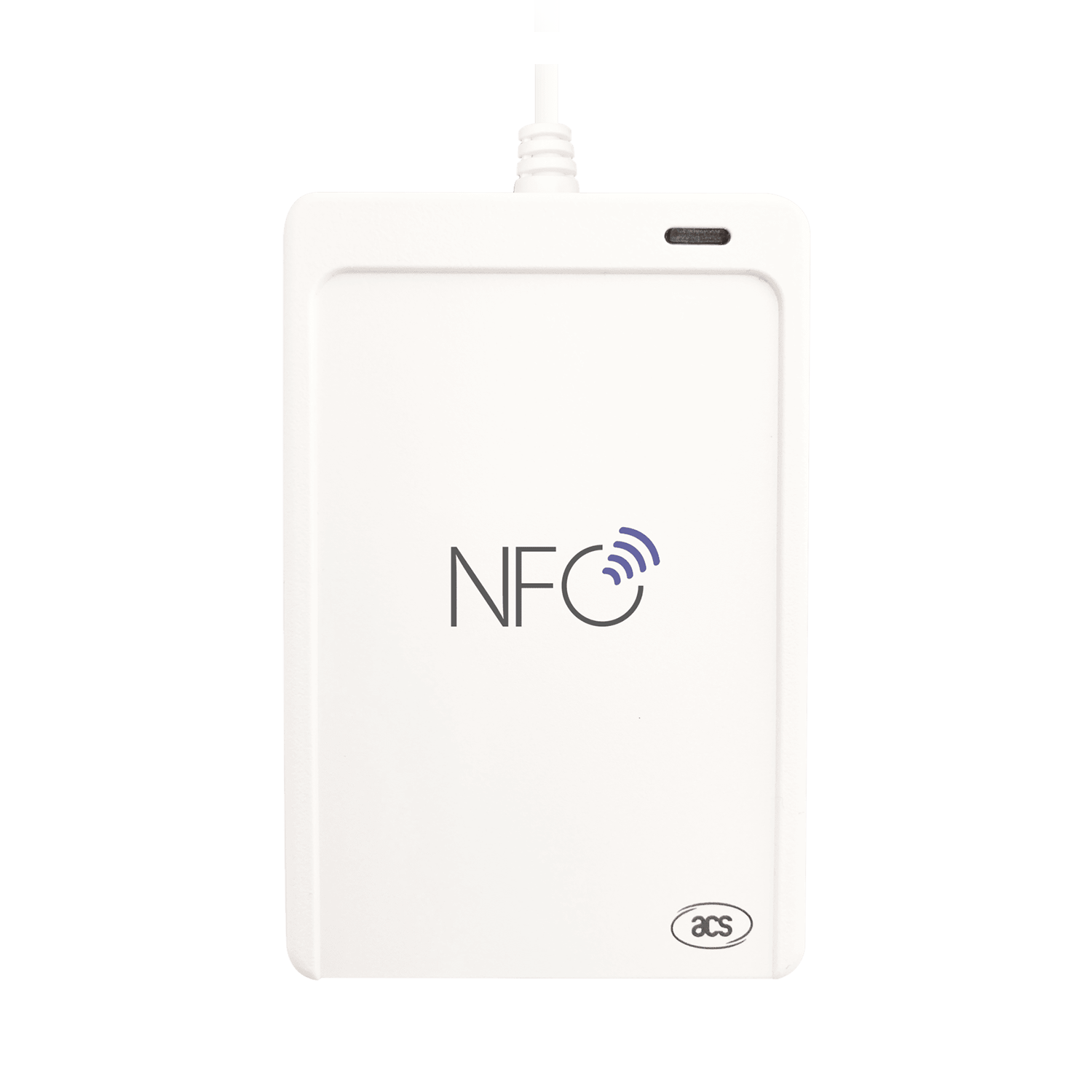 | ACR1552U USB NFC Reader IV | Flat desktop tap reader, 98 x 65 x 12.8 mm, fixed USB cable, SAM slot. | Contactless 13.56 MHz, including ISO 15693 |
 | ACR122U USB NFC Reader | Desktop tap reader. ACS lists it as end of life, names the ACR1552U as the newer model, and warns of counterfeit units. | Contactless 13.56 MHz (NFC) |
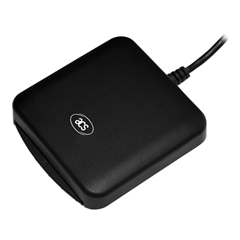 | ACR39U Smart card reader | You insert a full-size card into a slot. Desktop (72.2 x 69.0 mm), upright H1 (80 mm tall) or USB-stick-size PocketMate II (58 x 20 mm). | Contact (ISO 7816) and memory cards |
 | ACR1581U DualBoost III | Larger desktop reader (120.5 x 72.0 mm) with both a card slot and a tap area; 2 m fixed cable. | Contact and contactless (dual interface) |
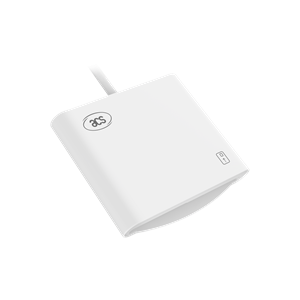 | ACR40U Standard / Premium | Compact contact reader (55 x 65 x 9 mm), two LEDs, stand for upright or flat use. | Contact (ISO 7816) and memory cards |
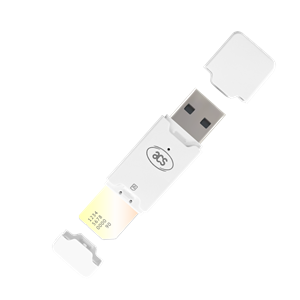 | ACR40T SIM-sized reader | USB token that takes a SIM-sized (2FF) card; the Premium version has a button. | SIM-sized contact cards |
 | ACR1255U-J1 Secure Bluetooth NFC Reader | Card-sized (85 x 54 x 10 mm), battery powered, Bluetooth plus a USB Mini-B port. | Contactless 13.56 MHz (NFC) |
| No photo | ACR35 NFC MobileMate | Pocket reader that plugs into a phone's 3.5 mm audio jack, not a PC's USB port, so the Windows checks on this page do not apply. Use the label. | Contactless 13.56 MHz and magnetic stripe |
Why the Exact Model Matters
Drivers
ACS publishes drivers per model on its own site. A driver for one model does not have to match another model's hardware IDs, which is a common reason for an "Unknown device". Our driver installation guide shows how to find the right package; the model guides for the ACR1252U, ACR1552U and ACR122U link straight to ACS.
Official drivers from acs.com.hk only
SDK and commands
Each ACS SDK and API manual is written for one model or series. Escape commands, LED and buzzer control and some card commands differ between models, so code written for one reader may need changes for another. See the ACR1252U, ACR1552U and ACR122U SDK guides, or the developer centre.
SDK kits from BSD on enquiry
Card support
A contactless reader (ACR1252U, ACR1552U, ACR122U) cannot read a chip card inserted in a slot, and a contact reader (ACR39U, ACR40U) cannot read a tapped NFC card. Even among contactless readers, card types differ; for example ACS lists ISO 15693 support for the ACR1552U. Check the model before you choose cards.
Compare: ACR122U vs ACR1552U, ACR39U vs ACR40U
Test tools and support
BSD's free reader utilities are built per model, and ACS and BSD support start by asking for the model, order code and firmware version. Having them ready saves a round of questions. See the BSD reader utilities.
Utilities for ACR1252U, ACR1552U, ACR122U, ACR39U and ACR35
When the Model Is Still Unclear
| What you see | Likely cause | What to do |
|---|---|---|
| Label missing or unreadable | Worn or removed label | Use the Windows name, then the Hardware Ids and "Bus reported device description" (Step 3). Compare the shape with the picture table. |
| Device Manager shows a generic Microsoft reader name | The Windows built-in CCID driver is running, not the ACS driver | Read the Hardware Ids for the model; install the ACS driver for that model if you need ACS features. |
| Two entries for one reader | Contactless (PICC) and SAM interfaces | Normal for readers with a SAM slot. Use the PICC entry for tapped cards. |
| Name shows FW_Upgrade or Bootloader | Reader in firmware upgrade mode | Do not use it for cards. See the firmware guide and contact your supplier. |
| Label, Windows name and Hardware Ids do not agree | Wrong driver, a relabelled unit, or a non-genuine reader | Contact your supplier with all three values. For the ACR122U, ACS warns that counterfeit units are sold. |
| No entry anywhere in Device Manager | USB, cable or power problem | Follow the not detected checklist. |
Sources
Order codes, connectors, sizes and product status were checked on the official ACS product pages on 17 Nov 2026. Reader names and the per-version product IDs come from ACS documents supplied with ACS SDK kits, summarised in our own words. Device Manager properties and PowerShell cmdlets are Microsoft's.
- ACS ACR1252U, ACR1552U, ACR122U, ACR1581U and ACR1255U-J1 product pages
- ACS ACR39U, ACR39U-N1, ACR39U-NF and ACR39U-H1 product pages
- ACS ACR40U (Standard), ACR40U (Premium) and ACR40T (Standard) product pages
- ACS PC/SC driver installer ReadMe v4.3.2.0 (ACR1252U SDK v2.00) and v4.2.3.0 (ACR39U SDK v1.00); ACS CCID PC/SC driver installer ReadMe v1.0.4.0 (ACR40U SDK v1.00) and v1.0.5.0 (ACR1552U Series SDK v1.01); ACR1552U Series Reference Manual v1.05; ACR122U NFC Reader API manual; ACR39U SDK User Manual v1.00
- Microsoft: Standard USB identifiers and Get-PnpDeviceProperty
BSD Infotech is an independent ACS supplier and integrator, not the manufacturer. ACS, the ACS logo and ACS product names belong to Advanced Card Systems Ltd. Windows is a trademark of Microsoft Corporation.