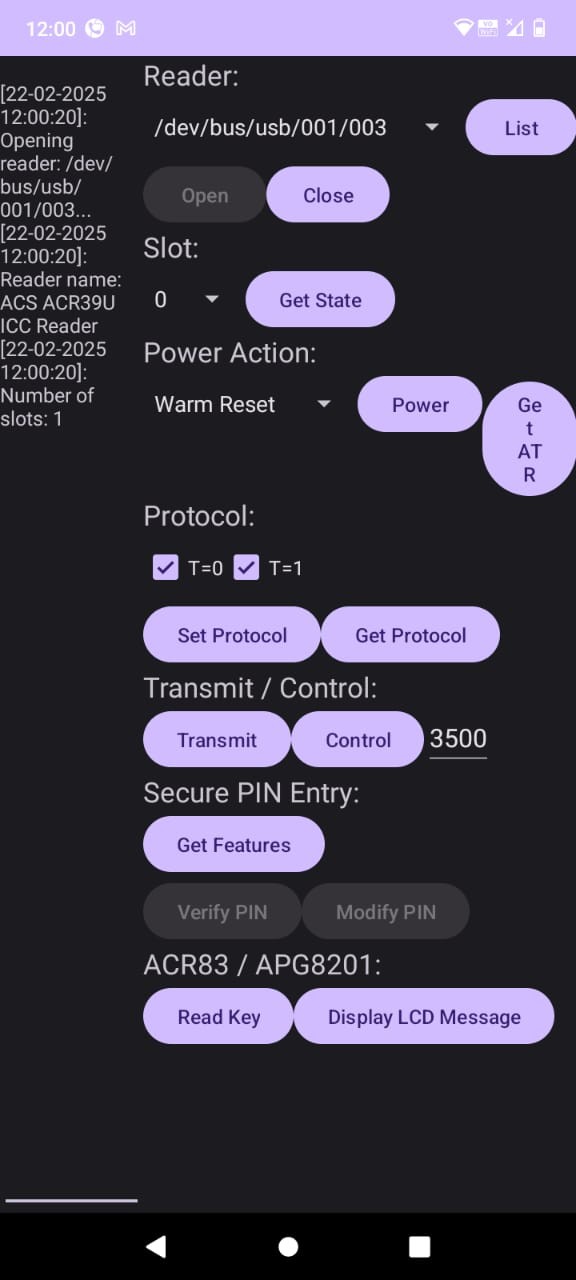
ACR39U-UF (ACR 39) Smart Card Reader
Looking to buy? See the full ACR39U product page for specifications and pricing, or read our ACR39U vs ACR40U comparison if you're also considering the newer ACR40U.
Steps How to Attach/Install and Test Reader (ACR39U-UF)
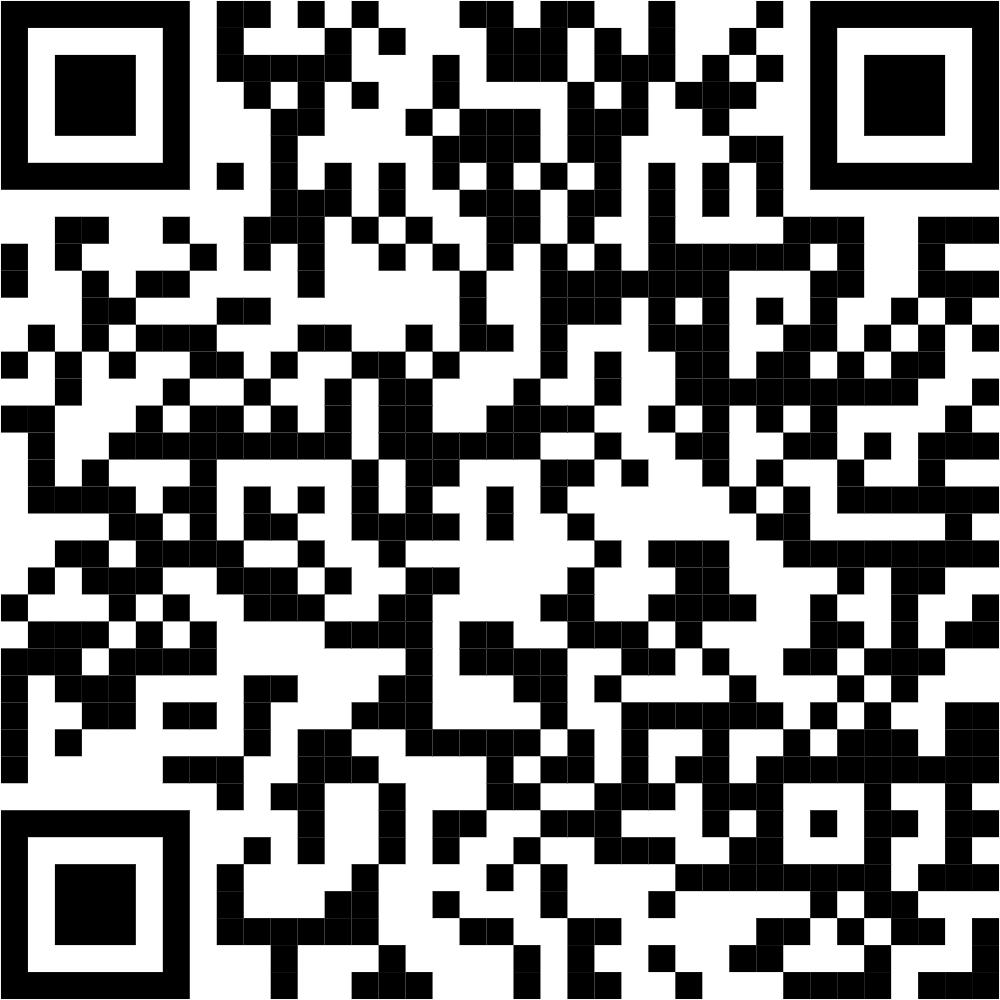
Step 1 How to install test app on your android mobile phone.
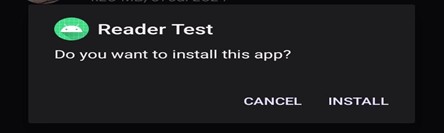
After clicking on Download, a pop-up will open. Click on Install.
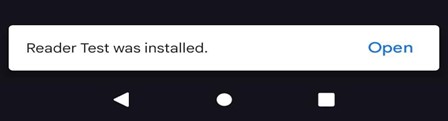
After installation a massage will appear like above screen means app is installed.
Step 2
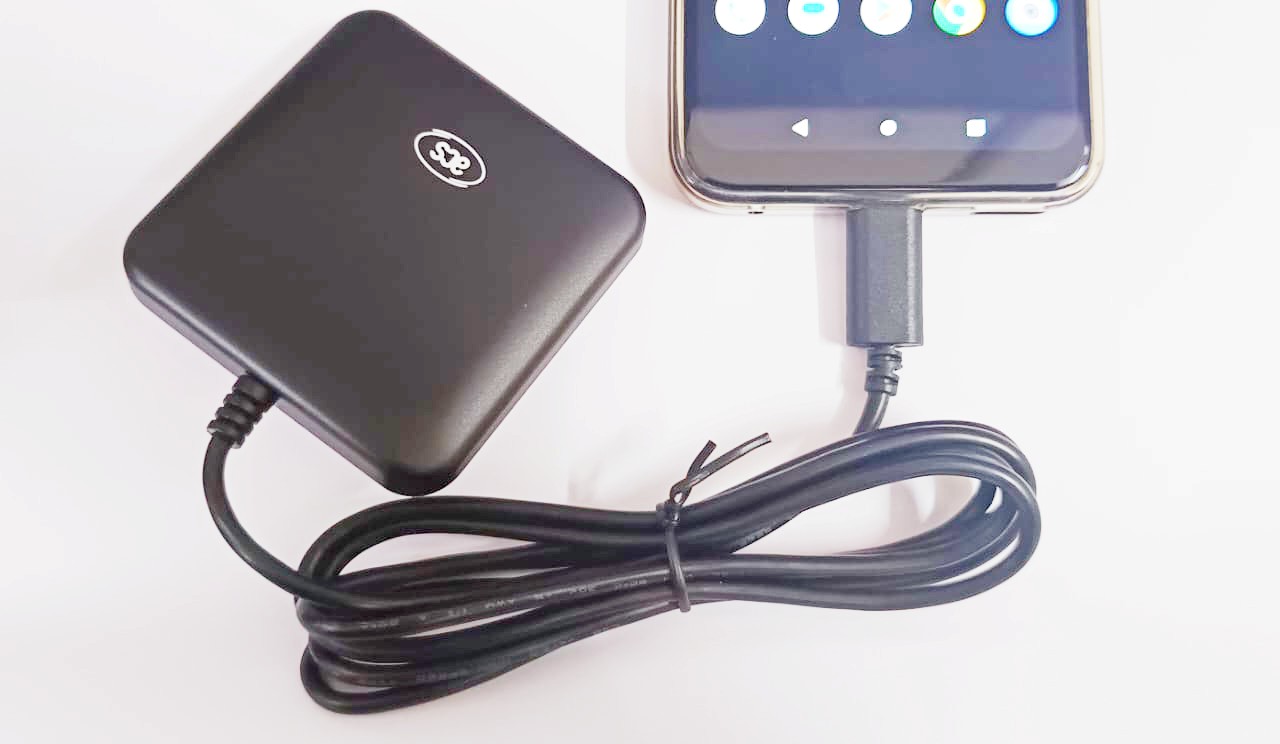
How to attach reader to phone.
After connecting the reader with phone a green light will be blinking which means reader is connected with phone.
Step 3
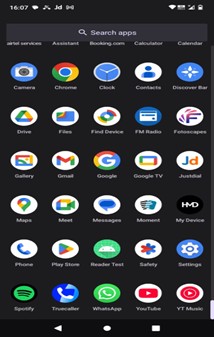
How to run app.
After app installation app icon will look like as per below red marked. Open the marked icon app
Step 4
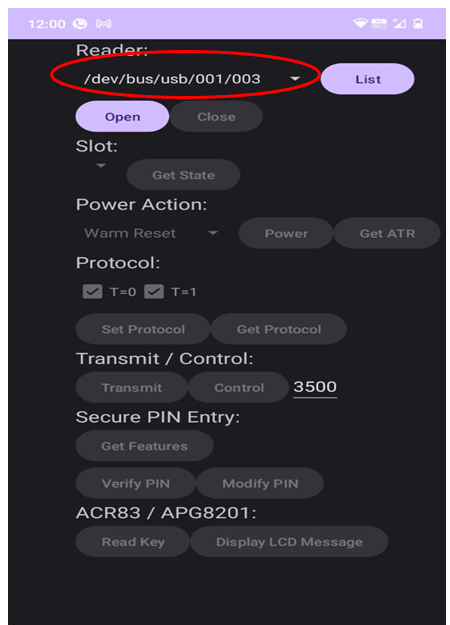
Click on list. When you click on list few data will open as per below screen.
Step 5
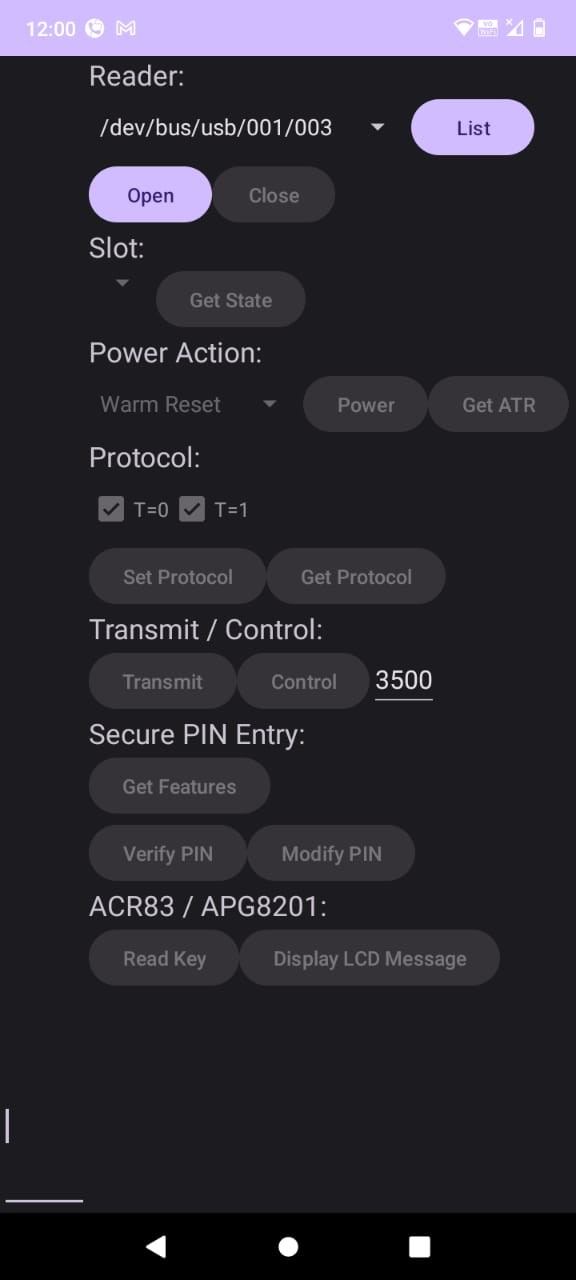
Click on open
Step 6
After clicking on open a pop-up will appear, which means give access to app to read the reader click on “OK”
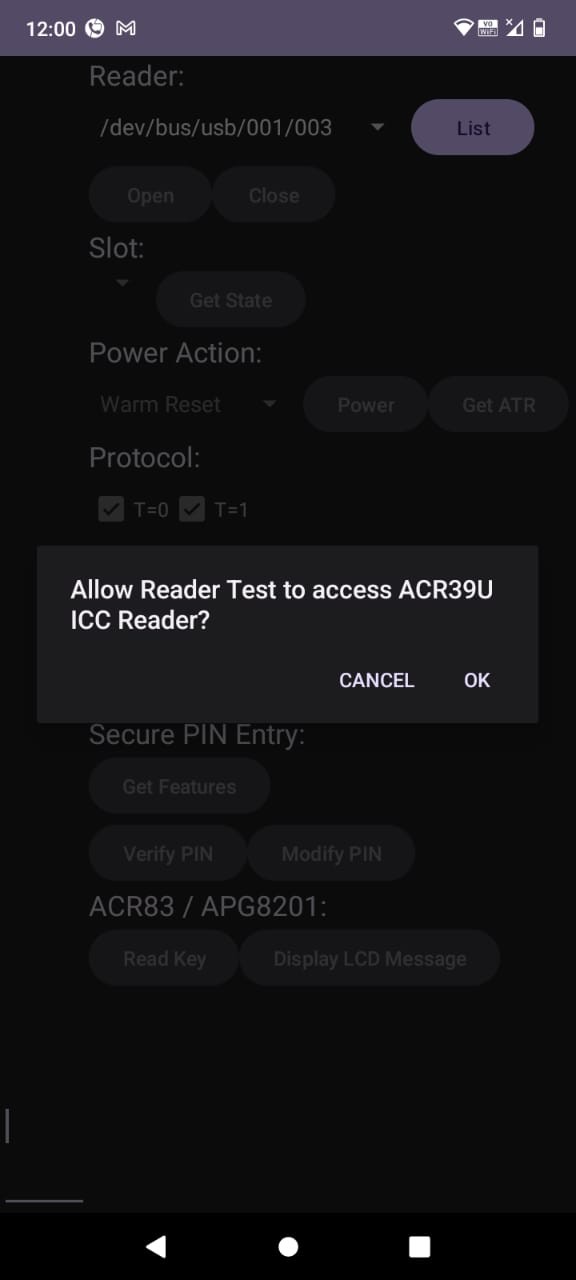
Step 7
Once you click “OK,” all the options will appear on your screen, confirming that the reader is functioning properly and is in good working condition with no issues.